
IPTV Firestick | Sky Glass IPTV On Firestick Setup Guide
Set up IPTV Firestick with this step-by-step guide. Follow simple instructions for IPTV on Firestick, including player installation, login, and troubleshooting for Sky Glass IPTV On Firestick.
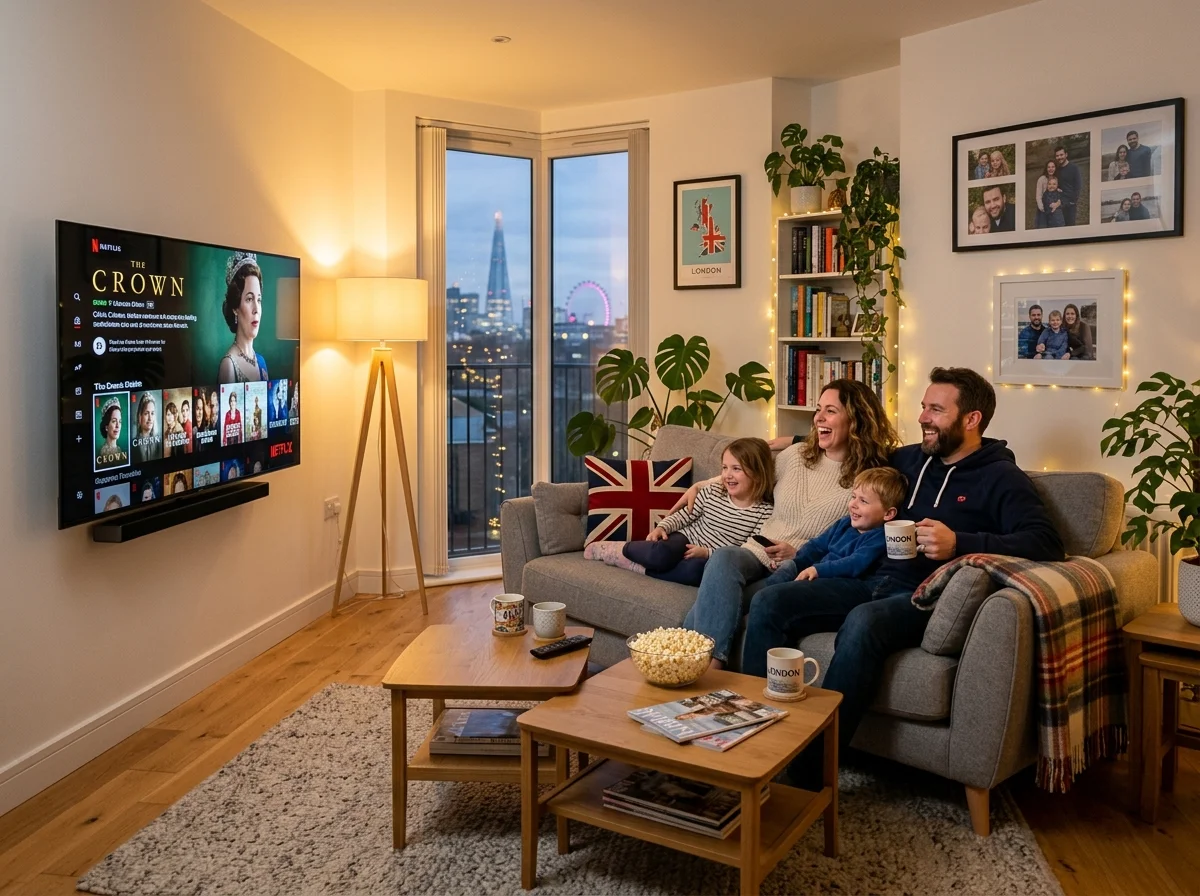
Firestick IPTV Benefits
Why Use IPTV Firestick?
An IPTV Firestick setup combines a compact device with a compatible player, making Firestick IPTV a practical option for flexible entertainment.
Easy IPTV Setup
The IPTV Firestick setup is simple when you use a compatible player and follow the correct steps.
Internet Streaming
Stream compatible IPTV content through your broadband connection without requiring traditional satellite equipment.
Flexible Device Setup
Firestick works with many compatible applications, giving you flexibility when choosing an IPTV For Firestick player.
Live TV & On-Demand
Access supported live TV, sports, films, series, and on-demand content through your connected service.
IPTV Firestick Installation
How to Install IPTV on Firestick
Follow these steps to complete your IPTV Firestick installation, from device preparation to player setup and login.
Step 1 — Prepare Your Firestick
Connect your Amazon Firestick to your television and make sure it has a stable internet connection. Complete the initial Fire TV setup before installing an IPTV application.
Check available storage and update Fire OS where possible. A stable connection can help reduce buffering.
Step 2 — Install Downloader
Open the Amazon Appstore and search for the Downloader application. Install it on your Firestick and open the app when installation is complete.
Downloader can help install applications that are not available directly through the Amazon Appstore.
Step 3 — Install a Compatible IPTV Player
Choose a compatible IPTV For Firestick player that supports your login format. Depending on the application, you may use Xtream Codes, an M3U playlist, or another supported method.
Download applications from legitimate sources and confirm compatibility before completing your IPTV Firestick setup.
Step 4 — Add Your IPTV Login Details
Open your IPTV player and select the appropriate login option. Enter the username, password, server URL, or M3U playlist supplied with your subscription.
For Sky Glass IPTV On Firestick, use the login details provided with your active subscription and check each field before connecting.
Step 5 — Load Your IPTV Channels
After authentication, allow the player to load available channels, categories, EPG data, and on-demand content.
Your Firestick IPTV setup is now ready. Test a channel before exploring the full library.
Firestick IPTV Entertainment
What Can You Watch with IPTV on Firestick?
Available content through IPTV on Firestick depends on your connected service and compatible player.
Live Sports
Watch available football, boxing, cricket, rugby, tennis, motorsport, and other included sporting content.
Movies & TV Series
Browse supported films, series, documentaries, box sets, and on-demand entertainment.
UK & International TV
Access available UK and international television categories through your connected subscription.
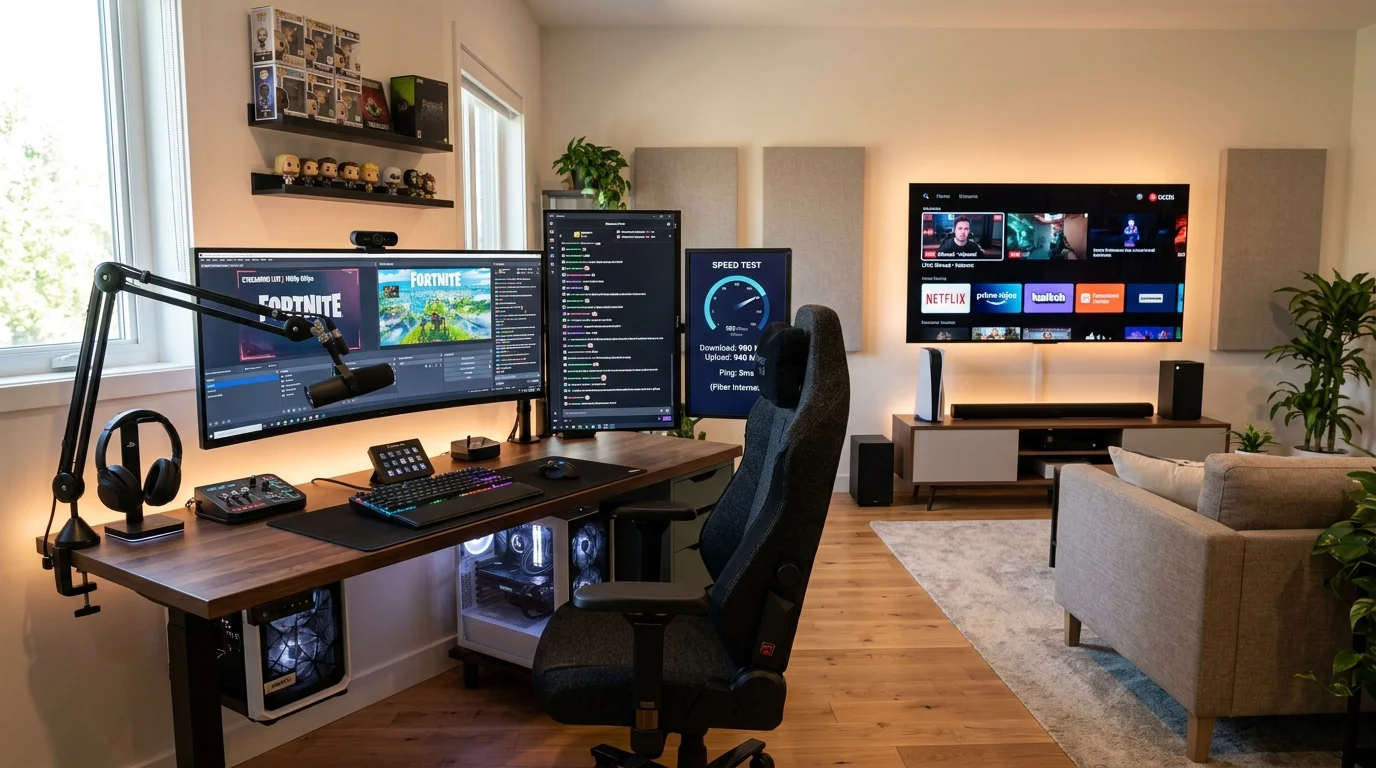
IPTV Firestick Performance
What Internet Speed Do You Need for IPTV Firestick?
Your broadband connection directly affects IPTV on Firestick playback. A stable connection is especially important for HD and 4K streaming.
SD Streaming
Around 10 Mbps can be a suitable starting point for standard-definition streaming.
HD Streaming
Around 25 Mbps can support smoother HD streaming, depending on network conditions.
4K Streaming
50 Mbps or more can provide a stronger connection for compatible 4K streams, especially when several devices share your network.
IPTV Firestick Troubleshooting
How to Fix Common IPTV Firestick Problems
If your IPTV Firestick setup is not working correctly, check these common issues first.
IPTV Buffering or Freezing
Check broadband speed and Wi-Fi signal. Restart your router and Firestick, then close unused applications.
IPTV Player Will Not Open
Restart the Firestick and reopen the player. Check compatibility with your Fire OS version and update the application where available.
IPTV Channels Will Not Load
Recheck your username, password, server URL, or M3U playlist. Incorrect details can prevent the player from loading content.
EPG Is Not Updating
Refresh the EPG inside your player and allow time for updates. Availability depends on the connected service.
For more on why Firestick is such a popular choice for streaming, see our guide on Sky Glass Firestick UK.
For a complete step-by-step setup walkthrough, see our 2026 IPTV Firestick setup guide.
Frequently Asked Questions
FAQs About IPTV Firestick
Find answers about IPTV Firestick, IPTV on Firestick, installation, setup, and Sky Glass IPTV On Firestick.
IPTV Firestick means using a compatible application on an Amazon Fire TV Stick to stream available television and on-demand content.
Yes. Compatible Firestick devices can run supported players and connect using Xtream Codes, an M3U playlist, or another supported method.
Connect your Firestick, install a compatible player, add your login details, allow content to load, and test playback.
Sky Glass IPTV On Firestick can be configured on compatible Amazon Fire TV devices using a supported player and the appropriate subscription details.
Yes. A compatible IPTV For Firestick player is normally required to load an M3U playlist, Xtream Codes account, or another IPTV source.
Check your internet speed, improve Wi-Fi signal, restart your router and Firestick, close unused applications, and test another compatible player if available.