Sky IPTV Downloader Code 2026: Latest App Download Code for Firestick
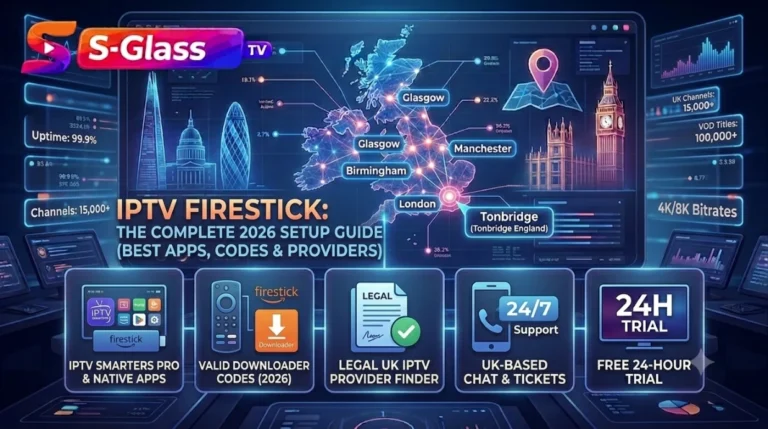
Installing a Sky Glass IPTV subscription on an Amazon Firestick is straightforward once you know how the Downloader method works. Firestick normally restricts app installations to the Amazon App Store, so users installing an APK from an external source need to use the Downloader app. The process uses a short Downloader code instead of requiring you to type a long download address with your remote.
This guide explains what a Downloader code does, where to find the current Sky IPTV code, and how to install the app on Firestick safely and efficiently.
What Is a Downloader Code?
The Downloader app, developed by AFTVnews and available through the Amazon App Store, provides a simple way to access APK downloads on Firestick, Fire TV, and compatible Android TV devices. Rather than entering a lengthy URL with your remote, you can enter a short numeric code that directs Downloader to the required file.
When users search for a “Sky IPTV latest app downloader code,” they are usually looking for the latest numeric code associated with the current Sky IPTV APK. Using an outdated code can result in an unavailable file, failed download, or broken installation.
Where to Get the Current Sky IPTV Downloader Code
Downloader codes are not static. They can change when an application is updated, rebuilt, or moved to a different hosting location. Older articles, social posts, and forum discussions may therefore contain codes that no longer work. We recommend checking our dedicated app support page for the current code whenever you are ready to install or update the application:
👉 Sky IPTV App Setup Guide for Firestick & Smart TV
The same guide provides installation information for Smart TVs and Android boxes, making it useful if you plan to use Sky IPTV across several compatible devices.
How to Use the Downloader Code on Firestick
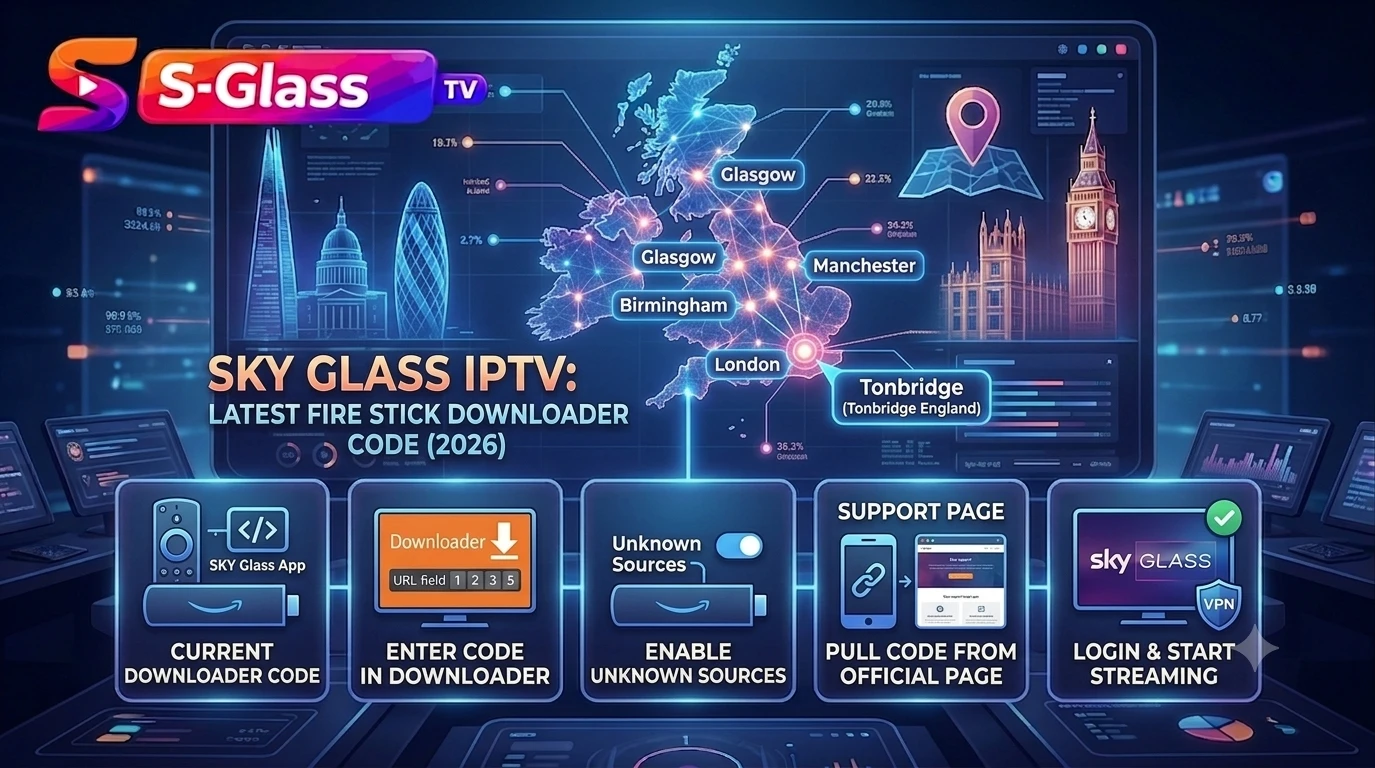
After locating the latest Downloader code from the support page, follow these steps to complete your Firestick installation:
Step 1: Enable Apps from Unknown Sources
On your Firestick, open Settings > My Fire TV > Developer Options. Enable Apps from Unknown Sources and, where available, ADB Debugging. These settings allow compatible applications to be installed through methods outside the standard Amazon App Store.
Step 2: Install the Downloader App
Return to the Firestick home screen and search the Amazon App Store for Downloader. Select the application published by AFTVnews and install it on your device before continuing with the APK download.
Step 3: Enter the Downloader Code
Open Downloader and select its URL field. Instead of entering a lengthy web address, enter the current numeric code shown on our app support page. Downloader will then access the latest Sky IPTV APK associated with that code.
Step 4: Install the APK
Wait while Downloader retrieves the APK file. When the installation prompt appears, select Install. Once the installation has completed, select Open to launch the application.
Step 5: Log In and Start Streaming
Launch the application and enter your Sky Glass IPTV login credentials. If you still need an active subscription, visit our IPTV subscription UK page to review the available options.
If you also need instructions for Smart TV, Android, iOS, or computer installation, follow our complete Sky Glass IPTV installation guide.
Sky IPTV APK Download via Downloader Code
The search phrase “Sky IPTV latest app downloader code apk” often causes confusion because the Downloader code and APK serve different purposes. The code acts as a shortcut that tells Downloader where to retrieve the APK. This means you do not normally need to search random third-party websites for a separate APK file. Using an established support source also reduces the risk of downloading modified or unsafe files from unknown file-sharing websites.
Free Downloader Codes for Other Firestick Apps (2026)
When setting up a new Firestick, you may install several applications alongside Sky IPTV. Downloader codes can vary between different app categories, so always check the relevant provider information before beginning an installation:
| App Category | What to Know |
|---|---|
| Sports Downloader codes | Sports-focused IPTV and streaming applications can change their Downloader codes regularly. Their availability may also change more quickly than general entertainment applications. Always obtain the latest code from the provider’s official website or support page. |
| General entertainment apps | These codes may remain active for longer periods, but checking the current source before installation is still recommended, particularly after an application update. |
| VPN and utility apps | Many VPN and utility applications are available directly through the Amazon App Store, so a Downloader code may not be necessary. Search the official App Store before choosing a sideloading method. |
Best practice for finding reliable Downloader codes in 2026: use the application’s official website or support page, avoid unverified codes posted in random comment sections, and check for a new code whenever an existing one produces a failed download or unavailable-file message.
Troubleshooting Common Downloader Code Errors
- “File not found” or 404 error — the Downloader code may no longer point to an active file. Visit our app support page and check the current code before trying again.
- App installs but won’t open — the APK may not have downloaded correctly because of an interrupted connection. Remove the application and repeat the installation using the latest Downloader code on a stable Wi-Fi connection.
- “Parse error” during install — this can indicate an incompatible or outdated Firestick software version. Open Settings > My Fire TV > About > Check for Updates, install any available update, and then retry the APK installation.
- Login fails after install — this normally relates to account or subscription credentials rather than Downloader. Check the details associated with your subscription plan page or contact the support team for assistance.
FAQs
Is using a Downloader code legal?
Yes. Downloader is a legitimate utility available through the Amazon App Store. It provides a method for accessing APK files, including applications that are legally distributed outside the standard Amazon App Store.
Does the Sky IPTV Downloader code change often?
It can change after application updates, hosting changes, or APK revisions. For this reason, it is better to check the current code on the dedicated app support page instead of relying on an old static code.
Can I use the same Downloader code on a Firestick and an Android TV box?
Yes, where the same APK is compatible with both platforms, Downloader codes can be used in the same way on Fire OS and supported Android TV devices with Downloader installed.
What if the Downloader app itself won’t install?
First, check that your Firestick has the required installation permissions enabled and that the device software is up to date. Restart the Firestick and try installing Downloader again through the Amazon App Store.
Final Thoughts
Getting Sky IPTV running on your Firestick is a simple process when you have the current Downloader code and follow the correct installation sequence: prepare the device, install Downloader, enter the current code, install the APK, and sign in. If you’re configuring several devices or need broader compatibility information, use our complete installation guide or visit our Firestick-specific page for additional device setup guidance.