The Complete IPTV Installation Guide: App Selection & Setup (2026)
Setting up an IPTV player is a straightforward software installation—there are no satellite dishes, coaxial runs, or external hardware tuners required. The primary challenge for most users is navigating the vast ecosystem of media player applications to find the correct software for their specific operating system.
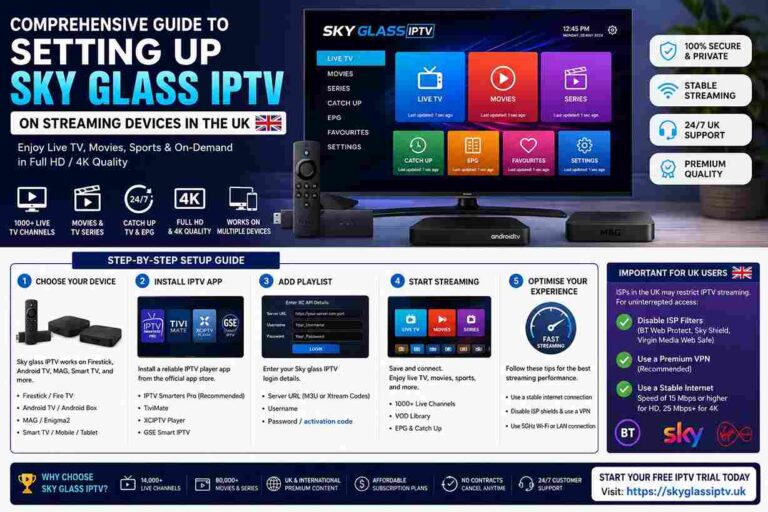
Apps like Smart IPTV, IPTV Smarters Pro, Sky Glass IPTV and TiviMate vary in compatibility, user interface, and credential ingestion methods. Selecting the wrong application for your device hardware is the leading cause of setup errors, poor performance, and playlist parsing failures.
This guide provides a detailed breakdown of top IPTV player applications, hardware cross-compatibility, and step-by-step configuration workflows across major platforms.
1. Prerequisites for IPTV Installation
Before installing any software player, verify that your local network and subscription assets meet the following operational baselines:
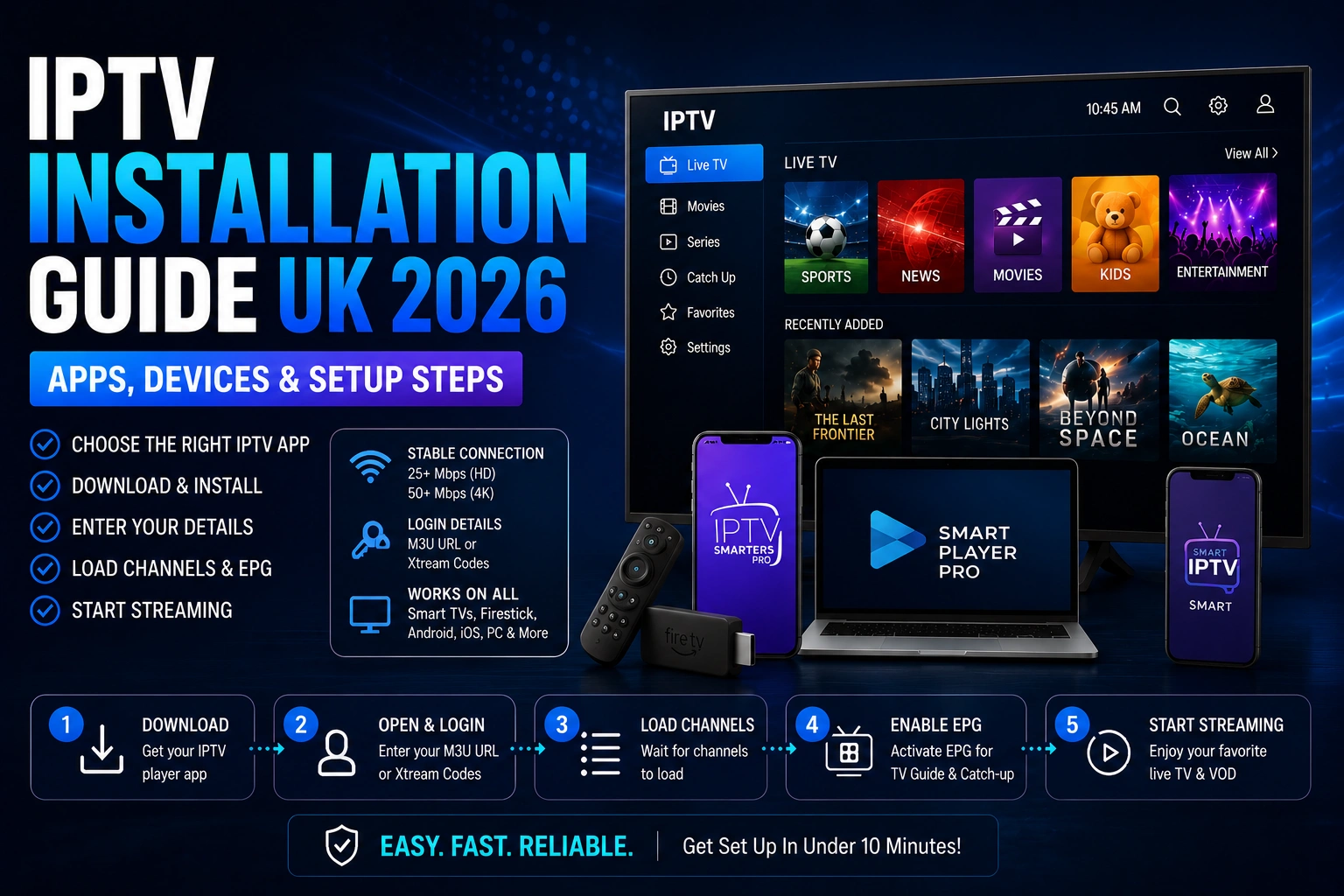
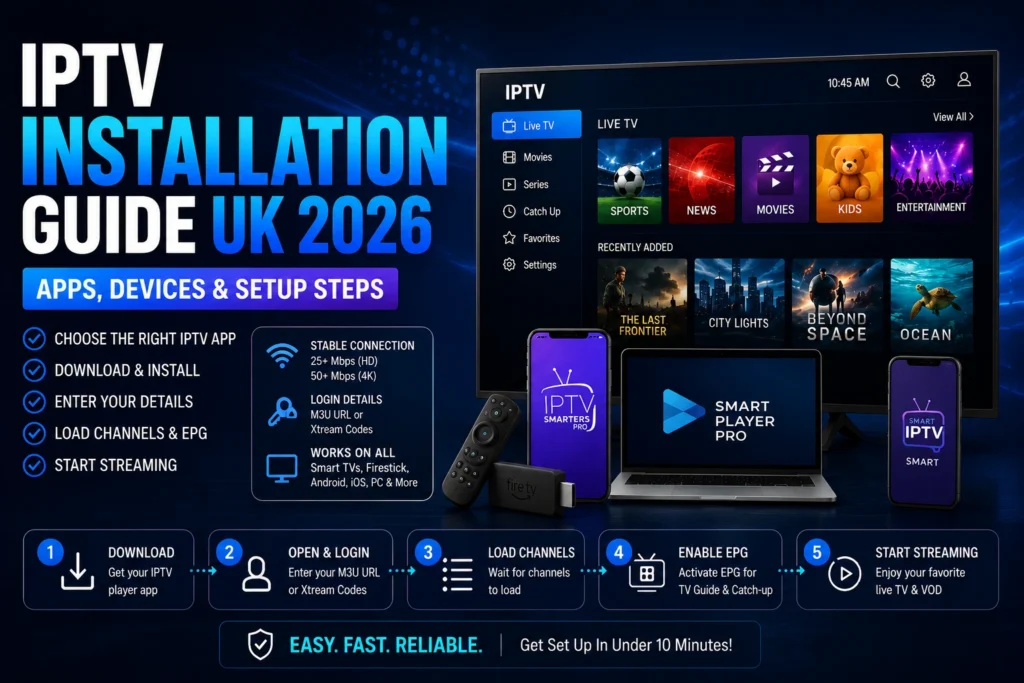
- Network Bandwidth: A minimum sustained download speed of 25 Mbps for 1080p High Definition (HD) streams, and 50 Mbps or higher for 4K Ultra HD or high-frame-rate (60fps) live sports broadcasting.
- Authentication Profile: Active credentials supplied by your subscription provider, formatted either as an Xtream Codes API set (
Server URL,Username, andPassword) or an M3U Playlist Link. - Hardware Platform: A supported endpoint running Android TV, Fire OS, tvOS, iOS, Windows, macOS, or a native Smart TV operating system (Samsung Tizen or LG webOS).
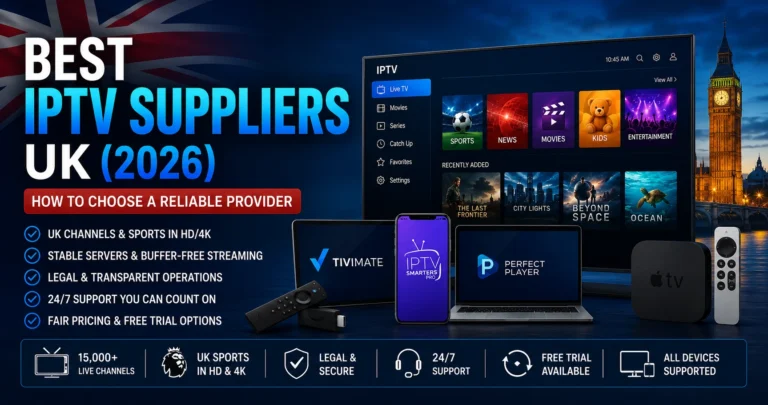
2. Best IPTV Player Applications
Different streaming players are optimized for specific operating systems, remote control navigation profiles, and decoding frameworks.
+-----------------------------------------------------------------------------------+
|                            IPTV PLAYER SELECTION MATRIX                           |
+----------------------+--------------------------+---------------------------------+
| TARGET PLATFORM      | RECOMMENDED APP          | CONNECTION METHOD               |
+----------------------+--------------------------+---------------------------------+
| Smart TVs (Tizen/webOS) | Smart IPTV (SIPTV) / IBO | MAC Address Portal Registration |
| Android TV / Firestick | TiviMate / Smarters Pro  | Xtream Codes API / M3U Link     |
| Windows / macOS      | IPTV Smarters Pro / VLC  | Xtream Codes API / Network URL  |
| Apple iOS / Apple TV | Smarters Lite / UHF      | Xtream Codes API / M3U Link     |
| Legacy / Low-Spec    | IPTV Smart Plus          | M3U Link (Lightweight)          |
+----------------------+--------------------------+---------------------------------+
Smart IPTV (SIPTV) — Best for Samsung & LG Smart TVs
Smart IPTV uses a MAC address registration workflow rather than direct on-screen credential entry. Upon launch, the app displays the device’s physical MAC address. You register this address alongside your M3U playlist link via the official Smart IPTV web management portal. Once synced, the server pushes the channel structure directly to the TV.
IPTV Smarters Pro — Best for Cross-Platform Compatibility
IPTV Smarters Pro offers broad cross-platform support across Windows, macOS, Android, and iOS. It features a multi-screen interface, natively parses Electronic Program Guide (EPG) data, and manages Video-on-Demand (VOD) libraries via the Xtream Codes API.
TiviMate & IPTV Smart Player Pro — Best for Android TV & Amazon Firestick
For Android-based TV environments (Fire OS, Google TV, Android TV), TiviMate and IPTV Smart Player Pro provide a traditional cable box interface. They excel at fast channel switching, multi-playlist management, catch-up TV parsing, and low resource utilization on streaming sticks.
IPTV Smart Plus — Best for Legacy Devices
IPTV Smart Plus is a lightweight player designed for older hardware with limited RAM or aging processors. It strips away heavy UI animations, cloud syncing, and complex multi-EPG overlays to ensure smooth video decoding without application crashes.
3. Universal 5-Step Installation Workflow
Regardless of the media player or endpoint hardware used, the underlying connection protocol follows a standard five-step process:
  +------------------+      +------------------+      +------------------+
  |  1. Download     |      |  2. Launch App   |      |  3. Ingest       |
  |  Target App      | ---> |  Fetch MAC or    | ---> |  Credentials     |
  |  from Store/APK  |      |  Open Login UI   |      |  (Xtream / M3U)  |
  +------------------+      +------------------+      +------------------+
                                                               |
                                                               v
  +------------------+                                +------------------+
  |  5. Enable EPG & |                                |  4. Download     |
  |  Channel Guide   | <----------------------------- |  Channel Index   |
  |  in Settings     |                                |  from Server     |
  +------------------+                                +------------------+
- Retrieve Application: Download the media player from your device’s native app store, or sideload the installation package using utilities like the Downloader app on Fire OS.
- Initialize Application: Launch the player to generate a MAC address display or access the primary authentication screen.
- Input Server Profile: Enter your Xtream Codes API parameters (
Server URL,Username,Password) or paste your full M3U Playlist URL. - Parse Channel Index: Allow the player 30 to 60 seconds to pull down live channels, VOD categories, and cover art indices from the host server.
- Configure EPG Data: Access settings to verify that the Electronic Program Guide source is set to auto-refresh upon application startup.
4. Device-Specific Installation Instructions
Amazon Firestick & Fire TV
- Install the Downloader app from the Amazon Appstore.
- Open Fire TV settings:
My Fire TV>Developer Options> enableInstall Unknown Appsfor Downloader. - Launch Downloader, enter the direct numeric code or URL for your chosen player (e.g., TiviMate or IPTV Smarters Pro), and click Install.
- Launch the player and select Login with Xtream Codes API.
Android TV & Google TV Devices
- Open the Google Play Store on your television.
- Search for your preferred player (e.g., IPTV Smarters Pro, TiviMate, or IBO Player).
- Click Install, open the app, and select your ingestion framework (Xtream Codes or M3U).
Samsung (Tizen) & LG (webOS) Smart TVs
- Access the Samsung App Store or LG Content Store.
- Search for and install Smart IPTV (SIPTV) or IBO Player.
- Open the app and note the MAC Address displayed on screen.
- On a phone or computer, visit the app’s official activation webpage, enter your TV’s MAC address along with your provider’s M3U URL, and click Save/Send.
- Restart the app on your TV to load the channel database.
Windows PC & Mac
- Download the desktop installation package for IPTV Smarters Pro or use VLC Media Player.
- For Smarters: Launch the application, choose Add User, and input your Xtream Codes credentials.
- For VLC: Open
Media>Open Network Stream(orFile>Open Networkon Mac), paste your M3U URL, and click Play.
5. Troubleshooting & Configuration Fixes
| Issue | Technical Root Cause | Resolution Strategy |
| “Authorization Failed” Error | Syntax typo in server URL, username, or password; or expired subscription. | Re-enter details using exact case sensitivity; verify subscription status in billing portal. |
| Persistent Stream Buffering | Local Wi-Fi interference, packet loss, or ISP throttling during peak hours. | Connect device via wired Ethernet; restart router; disable ISP security filters (e.g., Sky Shield, Virgin Web Safe). |
| “Format/Parser Error” | Media player engine cannot decode the video container format. | Switch stream format setting in the app from .ts (MPEG-TS) to .m3u8 (HLS), or update software engine. |
| EPG Guide Displaying Blank | The player has not synchronized local system clock with server EPG time zone. | Force an EPG source update in player settings; verify system date/time settings on streaming device. |
Frequently Asked Questions
Which IPTV player application should I install first?
For Android TV and Firestick, TiviMate or IPTV Smarters Pro provide the most reliable experience. For Samsung and LG Smart TVs, Smart IPTV or IBO Player are the primary options due to TV operating system constraints.
What is the difference between M3U links and Xtream Codes API?
An M3U link is a single, long URL that points directly to a raw text file containing stream links. Xtream Codes API breaks credentials into three distinct inputs (Server URL, Username, and Password), allowing the player to pull live channels, VOD libraries, and EPG data into organized menus.
Can I use my IPTV app on multiple devices simultaneously?
You can install player software on as many devices as you like. However, your concurrent stream limit is governed by your subscription plan. Streaming on more devices at once than your plan allows will result in server-side account lockouts or buffering.