Sky IPTV Downloader Code 2026: Latest App Download Code for Firestick
If you’ve just picked up a Sky Glass IPTV subscription and you’re trying to get the app onto your Amazon Firestick, you’ve probably run into the same wall thousands of other UK users hit every week: Firestick doesn’t let you install apps from outside the Amazon App Store without a little extra step. That step is the Downloader app, and to use it, you need a Downloader code — a short numeric code you type into the app instead of a long web address.
This guide walks you through exactly what a Downloader code is, how to find the current Sky IPTV code, and how to get the app installed and streaming in under five minutes.
What Is a Downloader Code?
The Downloader app (built by AFTVnews and available free on the Amazon App Store) lets you sideload APK files onto Firestick, Fire TV, and Android TV devices. Instead of typing out a full URL on an on-screen keyboard using your remote, you enter a short numeric code that redirects straight to the file.
So when people search for a “Sky IPTV latest app downloader code,” what they actually need is the current numeric code that points the Downloader app at the correct, up-to-date Sky IPTV APK — not a generic or outdated one that leads to a broken link.
Where to Get the Current Sky IPTV Downloader Code
Downloader codes are not static — they get updated whenever the app is rebuilt or the hosting link changes, which means codes posted in old blog posts or forum threads often stop working within a few months. Rather than publish a number here that could go stale, we keep the live, currently working code on our dedicated app support page, updated every time the app is refreshed:
👉 Sky IPTV App Setup Guide for Firestick & Smart TV
That page also covers Smart TV and Android box installs if Firestick isn’t your only device.
How to Use the Downloader Code on Firestick
Once you have the current code from the link above, here’s the full process:
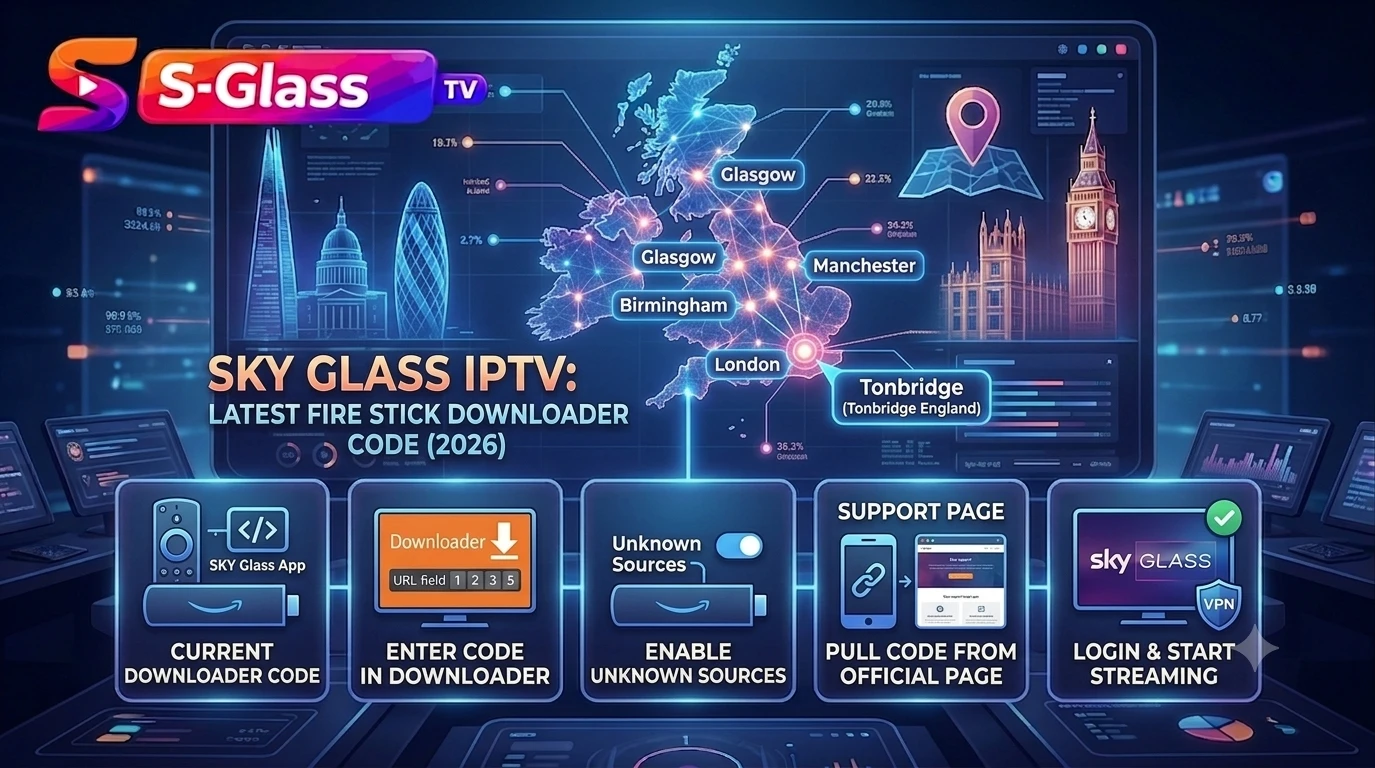
Step 1: Enable Apps from Unknown Sources
On your Firestick, go to Settings > My Fire TV > Developer Options, then turn on Apps from Unknown Sources and ADB Debugging. This allows sideloaded apps to install outside the Amazon App Store.
Step 2: Install the Downloader App
From the Firestick home screen, search the Amazon App Store for Downloader and install it (it’s free, published by AFTVnews).
Step 3: Enter the Downloader Code
Open Downloader, select the URL field, and instead of typing a web address, enter the current numeric code from our app support page. This pulls the latest Sky IPTV APK directly.
Step 4: Install the APK
Downloader will fetch the file automatically. Select Install when prompted, then Open once installation finishes.
Step 5: Log In and Start Streaming
Launch the app and enter your Sky Glass IPTV login credentials. If you haven’t set up your subscription yet, you can grab a plan on our IPTV subscription UK page first.
For a broader walkthrough covering Smart TV, Android, iOS, and PC setups too, see our full Sky Glass IPTV installation guide.
Sky IPTV APK Download via Downloader Code
A common follow-up search is “Sky IPTV latest app downloader code apk” — people want to confirm the Downloader code and the APK are the same thing. They are: the code is simply the shortcut that fetches the APK file. You never need to download the APK separately from a third-party site, which is safer, since sideloading from random file-sharing sites is one of the most common ways Firestick users end up with malware-laden apps.
Free Downloader Codes for Other Firestick Apps (2026)
If you’re setting up a Firestick from scratch, Sky IPTV is rarely the only app on the list. Here’s how the wider Downloader code landscape works in 2026:
| App Category | What to Know |
|---|---|
| Sports Downloader codes | Sports-focused IPTV and streaming apps rotate their Downloader codes most frequently, since sports apps get taken down and relaunched more often than general entertainment apps. Always pull the code from the provider’s own official page rather than a forum post. |
| General entertainment apps | Codes are more stable but still worth double-checking before each install, especially after an app update. |
| VPN and utility apps | Many are on the Amazon App Store directly and don’t need a Downloader code at all — check the App Store first before sideloading. |
Best practice for finding reliable Downloader codes in 2026: stick to the app’s official website or support page, avoid codes shared in random comment sections, and re-verify the code if an install fails — that’s almost always a sign the code has been updated.
Troubleshooting Common Downloader Code Errors
- “File not found” or 404 error — the code has expired. Return to our app support page for the current one.
- App installs but won’t open — usually a partial download caused by a Wi-Fi drop. Delete the app and reinstall using the Downloader code again, ideally on a stable connection.
- “Parse error” during install — this typically means the Firestick software is out of date. Update your Fire OS under Settings > My Fire TV > About > Check for Updates, then retry.
- Login fails after install — this is a subscription issue, not a Downloader issue. Confirm your credentials on your subscription plan page or contact support.
FAQs
Is using a Downloader code legal?
Yes. The Downloader app itself is a legitimate, free utility available on the Amazon App Store, used to install any APK — including entirely legal apps. It’s simply a sideloading tool.
Does the Sky IPTV Downloader code change often?
It can, particularly after app updates. That’s why we keep the live code on our app support page rather than in a static blog post that goes stale.
Can I use the same Downloader code on a Firestick and an Android TV box?
Yes — Downloader codes work the same way across any Fire OS or Android TV device that has the Downloader app installed.
What if the Downloader app itself won’t install?
Make sure Apps from Unknown Sources is enabled first (Step 1 above) — this is the most common reason the Downloader app fails to install or run properly.
Final Thoughts
Getting Sky IPTV running on your Firestick takes less than five minutes once you have the current Downloader code and know the four-step process: enable unknown sources, install Downloader, enter the code, then log in. If you’re setting up multiple devices or want the full compatibility rundown, check out our complete installation guide or head to our Firestick-specific page for device-specific tips.