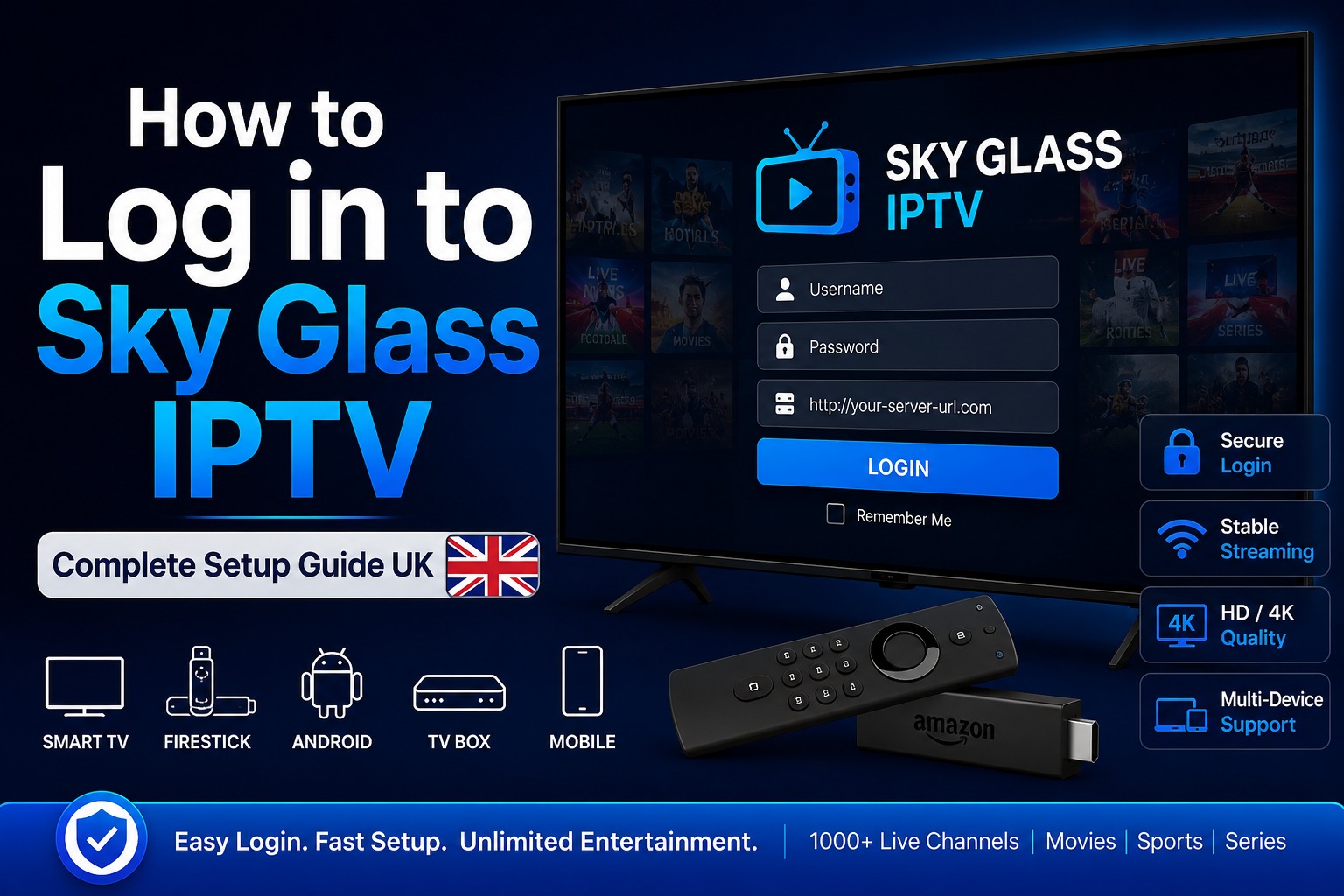
The Complete Sky Glass IPTV Setup & Authentication Guide (2026)
Activating your Sky Glass IPTV setup requires two main steps: entering your Xtream Codes API or M3U playlist URL into your media player, and turning off your UK broadband network filters.
If left enabled, ISP web filters intercept streaming packets, causing immediate “Authorization Error” messages, “Cannot Connect” warnings, or infinite buffering loops. This guide explains how to locate your login details, configure your player correctly, and adjust your router settings to ensure a reliable connection.
1. Locating Your Login Credentials
When your subscription is provisioned, the automated billing engine generates a unique technical profile on the host server. Unlike mainstream consumer streaming apps, IPTV credentials use direct database lookup keys rather than a standard email and password.
Where Credentials Are Sent
Your access details are delivered through three standard channels:
- Email Welcome Message: Sent immediately after account activation.
- Spam & Junk Folders: UK email providers frequently flag automated server notifications containing API links.
- Account Billing Portal: A copy of your active server paths and stream keys is stored under your active invoice history.
Credential Structure Explained
Your login details consist of three distinct components that must match the host database:
| Component | Technical Term | Format Example | Function |
|---|---|---|---|
| Username | Account Identifier | skyuser4k92 | Identifies your active subscription line on the server. |
| Password | Authentication Key | xK81vPzL90 | Validates your encrypted access token. |
| Server URL | Host Domain / Port | [http://uk-stream.xyz:8080](http://uk-stream.xyz:8080) | Points your media player directly to the streaming node. |
| M3U Link | Playlist File Target | http://.../get.php?auth=xyz | Downloads the raw index of channels, VOD, and EPG data. |
Account Security Warning: Keep your server keys private. Loading a single-connection account onto multiple devices simultaneously will trigger an automated security lockout on the host server.
2. How to Log In Across Devices
Before entering your details, ensure you are using an updated media player.
+-----------------------------------------------------------------------+
|                         CHOOSE YOUR LOGIN METHOD                      |
+------------------------------------+----------------------------------+
                                     |
                                     v
         +---------------------------+---------------------------+
         |                                                       |
         v                                                       v
+----------------------------------+   +----------------------------------+
|    METHOD 1: Xtream Codes API     |   |       METHOD 2: M3U Link         |
|         (Recommended)            |   |     (Legacy/Basic Players)     |
+----------------------------------+   +----------------------------------+
| - Faster EPG loading             |   | - Direct database file link      |
| - Organised VOD & Series layout  |   | - Ideal for basic video tools    |
| - Automated auto-refresh         |   | - Manual buffer tweaking needed  |
+----------------------------------+   +----------------------------------+
Method 1: Xtream Codes API (Recommended)
Xtream Codes API is the preferred connection framework for modern smart TVs, Firesticks, and Android devices. It handles heavy Electronic Program Guide (EPG) databases far more efficiently than standard M3U links.
- Launch Your Application: Open your chosen IPTV player (e.g., Smarters Pro, TiviMate, or XCIPTV, Sky Glass IPTV ).
- Select Account Type: Choose “Login with Xtream Codes API” (sometimes listed as Anyname API).
- Assign a Playlist Name: Type a reference name in the top box (e.g.,
Sky Glass Live). - Enter Credentials: Enter your Sky Glass IPTV Username and Password.
- Input Server URL: Enter the exact Server URL, including the port number at the end (e.g.,
:8080). - Authenticate: Click Add User or Login to trigger the initial channel directory download.
Method 2: M3U Playlist Link
Legacy media software (like VLC Media Player or Perfect Player) often relies on direct M3U file pointers.
- Open Media Player: Access your software’s network stream configuration menu.
- Select Network Input: Choose the option to add an M3U Playlist or Network URL.
- Paste Link: Paste the complete M3U URL string from your welcome email.
- Adjust Buffer Cache: To prevent playback stutters caused by temporary network dips, set your software’s network caching parameter to 2000ms.
- Initialize: Select Load or Play to import the channel list.
3. Resolving Login Failures: Disarming UK Broadband Filters
If your player displays a “Login Failed”, “Host Unreachable”, or “Authorization Error” message—and you have confirmed your username and password are correct—your UK Internet Service Provider (ISP) is likely blocking the connection.
UK ISPs use automated filtering systems that block unrecognized server ports during high-traffic events. You must turn off these security filters in your provider’s account dashboard.
                      +-----------------------------+
                      |   IPTV CONNECTION FAILURE   |
                      +--------------+--------------+
                                     |
                                     v
                      +-----------------------------+
                      |   Are credentials correct?  |
                      +--------------+--------------+
                                     |
                                     +---> YES
                                     |
                                     v
                      +-----------------------------+
                      |  UK ISP FILTER INTERCEPTION |
                      +--------------+--------------+
                                     |
         +---------------------------+---------------------------+
         |                           |                           |
         v                           v                           v
+------------------+        +------------------+        +------------------+
|   Sky Broadband  |        |   Virgin Media   |        |    BT Internet   |
|   Turn off:      |        |   Turn off:      |        |   Turn off:      |
|  Broadband Shield|        |    Web Safe      |        |   Web Protect    |
+------------------+        +------------------+        +------------------+
Disarming Sky Broadband Shield
- Log into your customer account at Sky.com.
- Navigate to My Account > Broadband & TV > Broadband Shield.
- Change the active filtering rules to Disabled or turn the shield completely off.
- Restart your router by unplugging it for 30 seconds to flush the old domain name system (DNS) cache.
Disarming Virgin Media Web Safe
- Log into your My Virgin Media online portal.
- Go to Account Settings > Online Security.
- Locate the Web Safe control panel.
- Toggle Virus Safe and Child Safe to Off.
- Restart your Virgin Media Superhub to apply the updated configuration profile across all local devices.
Disarming BT Web Protect
- Log into your My BT customer dashboard.
- Navigate to Your Services > Broadband > Security Extras.
- Locate BT Web Protect and toggle the switch to Off.
- Disconnect your streaming device from the Wi-Fi network for 60 seconds to force a fresh network lease.
4. Bypassing Network Blocks with an Encrypted VPN
Sometimes ISP filter changes take several hours to update across telephone exchanges. To bypass these restrictions immediately, use a Virtual Private Network (VPN).
Running a premium VPN using the WireGuard protocol encrypts your internet traffic. This hides your data from your ISP, preventing automated deep packet inspection (DPI) systems from throttling or blocking your streaming traffic.
Operational Rule: Always turn on your VPN before launching your IPTV application. If the app attempts to authenticate over an unencrypted connection first, your router may temporarily block the IP address before the VPN connects.
Step-by-Step VPN Setup
- Install App: Download a reputable VPN app onto your Firestick, Android TV, or streaming device.
- Select Server: Connect to a local server in London or Manchester to minimize latency.
- Check Connection: Run a quick IP address test to confirm your residential location is hidden.
- Launch Player: Open your IPTV player and re-submit your login details.
5. Maintenance Best Practices
Once your system is connected, follow these maintenance steps to ensure steady 4K streaming performance:
- Clear App Cache Weekly: Open your device’s system settings (
Settings>Applications>Select App>Clear Cache) to remove temp files and prevent navigation lag. - Monitor Concurrent Connections: Avoid using your credentials on more devices than your plan permits. Opening a second stream on an unauthorized device will trigger an automatic server suspension.
- Keep Player Apps Updated: Outdated video player engines can cause frame drops or audio sync issues when decoding modern H.265 (HEVC) video streams.
Frequently Asked Questions
Can I use my login details on multiple devices at the same time?
Concurrent streams depend entirely on your subscription tier. If your plan only includes one connection, running simultaneous streams on separate devices will cause the authentication server to temporarily lock your account.
Why does my player show a “Format Error” or “Parser Error”?
A format error usually indicates that your media player cannot process the data structure sent by the server. Update your player software to the latest version, or switch from an M3U link to the Xtream Codes API connection method.
Do IPTV login credentials change every month?
No. Your account credentials remain the same for the entire duration of your active subscription plan. New login credentials are generated only if you request an account reset, change your plan, or request an emergency security update.